Introduction
Welcome to SWIM ANALYSIS + SwimClub PRO, a complete professional platform for swimming performance analysis and team management. This platform is designed for coaches, analysts, club managers, and swimmers who want to record, analyze, and optimize performance through detailed tracking and advanced management tools.
The platform consists of two integrated modules:
- SWIM ANALYSIS — Individual swimmer performance analysis featuring SwimAnalytics Pro (per-lap competition analysis with 9 interactive charts, session recording with split times, stroke rate, underwater distance, DPS calculations, Excel/PDF export, and side-by-side session comparison), plus progress tracking, race simulation (What If), training zone calculation, multi-swimmer stopwatch, and season planning with macrocycle/mesocycle periodization.
- SwimClub PRO — Multi-club team management with role-based access for admins and coaches, group/team organization, structured training plans with AI-powered workout parsing, daily attendance tracking with volume credits, individual swimmer profiles, and comprehensive PDF reporting.
This manual will guide you through all the functionalities of both modules and explain how to get the most out of the entire platform.
SWIM ANALYSIS
Individual Performance Analysis & Season Planning
Registration and Login
User Registration
To start using SWIM ANALYSIS, you must create an account:
- Visit the home page and click "Create Account"
- Complete the form with your personal information:
- First and last name
- Email address (this will be your username)
- Password
- Club name (optional)
- Country (optional)
- Click "Create Account"
After registering, you can log in immediately.
Login
To access your account:
- Click "Login" in the navigation bar
- Enter your email and password
- Check "Remember Me" if you want to stay logged in
- Click "Login"
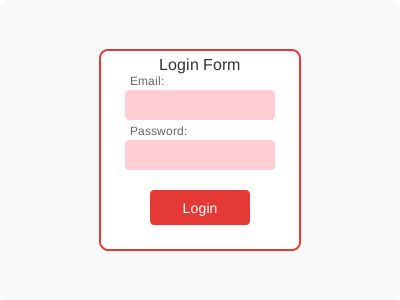
Login Screen
Password Management
Recovering a Forgotten Password
If you've forgotten your password, follow these steps to reset it:
- On the login page, click the "Forgot Password?" link
- Enter your registered email address
- Click the "Reset Password" button
- Check your email for a message with a password reset link (valid for 48 hours)
- Click the link in the email to open the reset password page
- Enter your new password and confirm it
- Click "Reset Password" to save your new password
- You'll be redirected to the login page where you can now log in with your new password
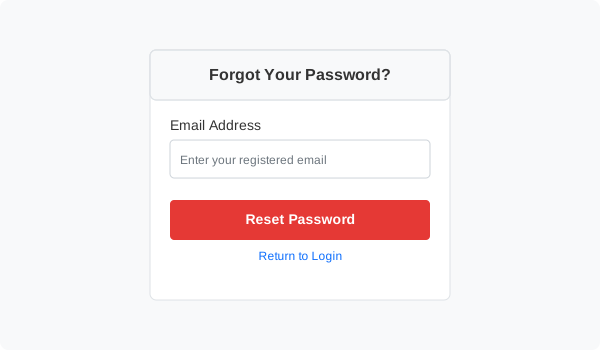
Forgot Password Screen
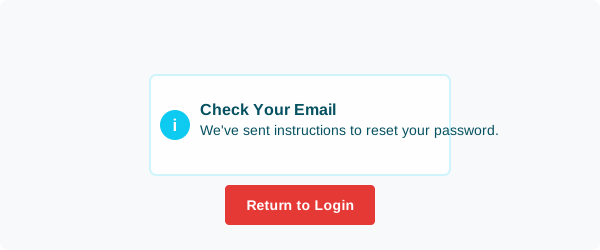
Check Your Email for Reset Instructions
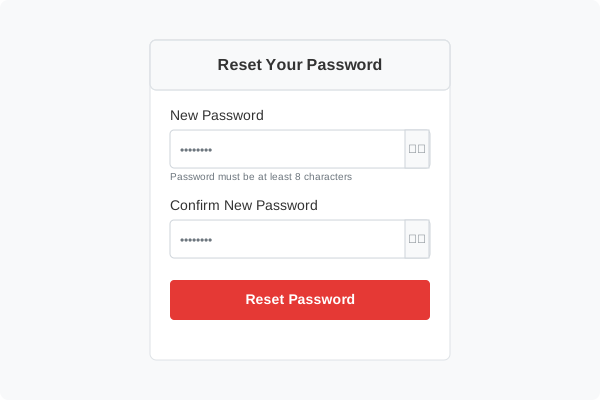
Password Reset Form
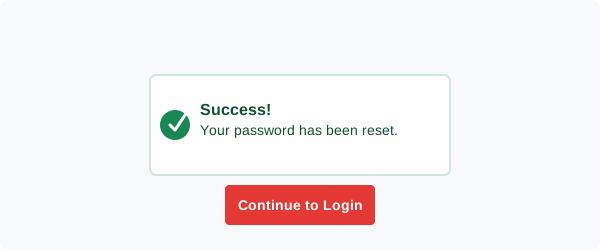
Password Reset Success
Changing Your Password
If you know your current password and want to change it to a new one, follow these steps:
- Log in to your account
- Click on your name or profile icon in the top-right corner of the screen
- Select "Profile" from the dropdown menu
- On the Profile page, you'll see two sections: "Profile Information" and "Change Password"
- In the "Change Password" section:
- Enter your current password
- Enter your new password (must be at least 8 characters)
- Confirm your new password
- Use the show/hide buttons (eye icons) to see what you're typing
- Click the "Change Password" button to save your changes
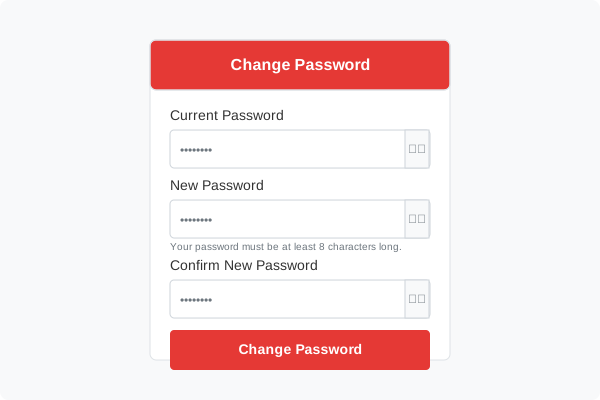
Change Password Form on Profile Page
Swimmer Management
Before recording times, you need to add your swimmers' profiles.
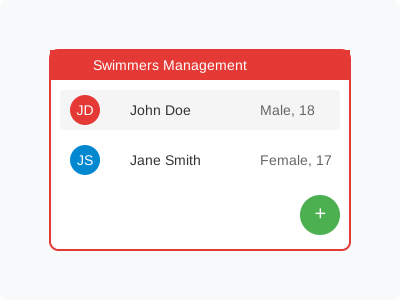
Swimmer Management Panel
Add New Swimmer
- Access the "My Swimmers" section from the main menu
- Click the "New Swimmer" button
- Complete the form with the information:
- First and last name
- Email (optional)
- Date of birth
- Gender
- Click "Save Swimmer"
Edit Swimmer Information
- Go to "My Swimmers"
- Find the swimmer you want to edit
- Click the edit icon (pencil)
- Modify the necessary information
- Click "Save Changes"
Delete Swimmer
- Go to "My Swimmers"
- Find the swimmer you want to delete
- Click the delete icon (trash)
- Confirm deletion in the dialog box
SwimAnalytics Pro
SwimAnalytics Pro is a web-based swimming performance analysis application designed for coaches, analysts, and technical staff. It allows you to record, visualize, and export competition data on a per-lap basis, including split times, stroke rate, underwater distance, and derived metrics such as velocity and DPS (distance per stroke cycle).
The application features four main sections accessible from a fixed sidebar navigation:
- Dashboard — Full visualization with 9 interactive charts
- New Entry — Per-lap data entry form for competition sessions
- History — Manage all recorded sessions with export options
- Compare — Side-by-side performance analysis between sessions
Key Concepts
| Term | Abbrev. | Description |
|---|---|---|
| Stroke Rate | SR | Stroke cycle frequency per minute (cyc/min). One cycle = one complete arm stroke. |
| Stroke Count | SC | Total number of complete stroke cycles per lap (optional field). |
| Underwater Distance | UWD | Distance covered underwater after the start dive or turn push-off (m). |
| Distance Per Stroke | DPS | Meters traveled per complete stroke cycle (m/cyc). Key efficiency indicator. |
| Lap Time | T. Lap | Total duration of one pool length, wall to wall (seconds). |
| Swim Time | T. Swim | Surface swimming time per lap, excluding the underwater phase. |
| Reaction Time | T. React | Time from the start signal to the swimmer leaving the starting block. |
| Flight Time | T. Flight | Time airborne during the start dive before water entry. |
| Section | Sec | A timed segment within a lap (15m + 10m in 25m pool; 25m in 50m pool). |
Dashboard — Main Panel
The Dashboard is the main screen of the system. It displays a complete analysis of the selected session, including key metrics and 9 interactive charts.
Filter Bar
At the top of the Dashboard you will find a filter bar to select which session to analyze:
| Filter | Description | Example |
|---|---|---|
| Swimmer | Filter by swimmer name | Carlos Mendez |
| Stroke | Swimming style of the session | Freestyle, Backstroke, Breaststroke, Butterfly |
| Distance (m) | Total event distance | 100m, 200m, 400m |
| Pool | Pool length used | 25 meters / 50 meters |
| Tournament | Competition name | National Championship 2026 |
Summary Metrics
Below the filter bar, 4 metric cards display the most important statistics:
| Card | What it shows | Format |
|---|---|---|
| Total Time | Sum of all lap times plus the reaction time | m:ss.cc or ss.cc s |
| Average SR | Average stroke rate across all laps | XX.X cyc/min |
| Average Velocity | Mean speed calculated from all lap times | X.XXX m/s |
| Reaction + Flight Time | Reaction time at the start and flight time | X.XX s |
Analysis Charts (9 Charts)
The Dashboard includes 9 charts arranged in a 2-column grid, each showing a different performance dimension:
| # | Name | Type | Description |
|---|---|---|---|
| 1 | Lap Time | Line | Evolution of lap times in seconds. Upward trend indicates fatigue. |
| 2 | SR vs Velocity | Dual-axis line | Stroke rate (red, left axis) vs velocity (blue dashed, right axis). Reveals efficiency as SR drops. |
| 3 | SR per Lap | Bar | Average stroke rate per lap (cyc/min). Detects frequency drops in final laps. |
| 4 | Strokes per Lap (SC) | Bar | Stroke count per lap. Increasing SC with decreasing SR signals DPS loss. |
| 5 | Velocity per Section | Line | Speed in m/s for each section of the lap. Identifies where speed is lost. |
| 6 | Swim Time per Lap | Line | Surface swimming time (excluding underwater time) per lap. |
| 7 | DPS | Blue line | Meters per stroke cycle. Higher DPS = greater technical efficiency. |
| 8 | Breakdown: Underwater + Swim | Stacked bars | Each lap split into underwater time (dark red) and surface swim time (light red). |
| 9 | Lap with Sections | Stacked bars + line | Each lap broken into sections and underwater time, with total lap time line overlaid. |
How to read the charts: X-axis shows laps (L1, L2, L3...). Y-axis shows the metric value. In dual-axis charts (SR vs Velocity), left Y-axis is red for SR and right Y-axis is blue for velocity.
Exporting Charts as PNG Images
Every chart has a "Download PNG" button in its top-right corner. Clicking it downloads a white-background PNG image of that chart, ready for reports or presentations.
New Entry — Recording a Session
The "New Entry" section lets you input data for a competition session. The form has two parts: general session information and a per-lap data table.
Session Information
Complete these fields before entering per-lap data (* = required):
| Field | Required | Description |
|---|---|---|
| Swimmer Name | Yes | Full name of the swimmer being analyzed |
| Date | Yes | Date of the competition (pre-filled with today's date) |
| Tournament / Competition | No | Name of the event or meet |
| Pool Type | Yes | Pool length: 25 meters or 50 meters |
| Distance | Yes | Total event distance: 50 / 100 / 200 / 400 / 800 / 1500 m |
| Stroke | No | Freestyle / Backstroke / Breaststroke / Butterfly / IM |
| Session | No | AM (morning) or PM (afternoon/evening) |
| Reaction Time | No | Start reaction time in seconds (e.g., 0.62) |
| Flight Time | No | Airborne time during start dive in seconds (e.g., 0.58) |
Lap Table — 25-Meter Pool
For a 25m pool, each lap has a 15m section and a 10m section, and one SR value is recorded. Number of laps = Distance / 25.
| Column | Unit | Type | Description |
|---|---|---|---|
| # | — | Auto | Lap number (1, 2, 3...) |
| Underwater Time | s | Manual | Time underwater after dive (Lap 1) or turn push-off (Lap 2+) |
| UWD | m | Manual | Underwater distance. Lap 1: "Start", Lap 2+: "Turn" |
| Sec. 15m | s | Manual | Time for the 15-meter section of the lap |
| Sec. 10m | s | Manual | Time for the 10-meter section of the lap |
| SR | cyc/min | Manual | Stroke rate (cycles per minute) for the full lap |
| SC | — | Optional | Stroke count: total complete stroke cycles |
| Swim Time | s | Calculated | Surface swimming time (automatic) |
| Lap Time | s | Calculated | Total lap duration (automatic) |
Lap Table — 50-Meter Pool
For a 50m pool, each lap has a single 25m section, and two SR values are recorded (one for each half). Number of laps = Distance / 50.
| Column | Unit | Type | Description |
|---|---|---|---|
| # | — | Auto | Lap number |
| Underwater Time | s | Manual | Time underwater after start or turn |
| UWD | m | Manual | Underwater distance. Lap 1: "Start", Lap 2+: "Turn" |
| Section 25m | s | Manual | Time of the first 25m stretch of the lap |
| SR 1 (0-25m) | cyc/min | Manual | Stroke rate in the first half of the lap |
| SR 2 (25-50m) | cyc/min | Manual | Stroke rate in the second half of the lap |
| SR Avg. | cyc/min | Calculated | Average of SR1 and SR2 (automatic) |
| SC | — | Optional | Total stroke count for the lap |
| Swim Time | s | Calculated | Surface swimming time (automatic) |
| Lap Time | s | Calculated | Total lap duration (automatic) |
Automatic Calculations
- 25m pool: Lap Time = Sec 15m + Sec 10m
- 50m pool: Lap Time = Section 25m
- Any pool: Swim Time = Lap Time - Underwater Time
- 50m pool: SR Avg. = (SR1 + SR2) / 2
Saving the Session
Once you have filled in the data, click the "Save Session" button (red, bottom-right):
- Automatic validation — The system checks that required fields (Swimmer, Date, Pool, Distance) are complete
- Toast confirmation — A green notification appears: "Session saved successfully"
- Auto-redirect — The system navigates to the Dashboard with the newly saved swimmer pre-selected
History — Session Log
The History section shows all sessions saved in the system, from most recent to oldest.
History Table
| Column | Description |
|---|---|
| Swimmer | Full name of the swimmer |
| Date | Competition date (YYYY-MM-DD) |
| Tournament | Competition name (truncated if too long; hover for full name) |
| Event | Total distance in meters (e.g., 200m) |
| Stroke | Registered swimming stroke |
| Pool | Red badge showing pool length (25m / 50m) |
| Session | Yellow AM badge or blue PM badge |
| Total Time | Total session time including reaction time |
| Avg. SR | Average stroke rate across all laps (cyc/min) |
| Avg. V. | Average velocity (m/s) |
| Actions | "View" and "X" buttons to visualize or delete |
Use the "All swimmers" dropdown at the top right to filter by a specific swimmer.
| Button | Action |
|---|---|
| "View" | Navigates to the Dashboard and loads the selected session with full charts |
| "X" | Permanently deletes the session (cannot be undone) |
Export to Excel
The "Export Excel" button generates an .xlsx file with all session data:
| Sheet | Content |
|---|---|
| Summary | One row per session with all metadata and calculated metrics (avg. SR, avg. velocity, laps, etc.) |
| [LastName_Date] | One sheet per session with all laps and their detailed values, including DPS. Sheet name is auto-generated. |
Export Dashboard to PDF
The "Export PDF" button generates a 2-page formatted report with charts and data table:
- Selection modal opens — A dialog with two dropdowns: Swimmer and Session
- Select swimmer — Choose from the first dropdown (pre-selected if filtered)
- Select session — Choose the specific session (date + event + tournament)
- Generate PDF — Click "Generate PDF". A progress screen appears while charts render (10-30 seconds)
PDF Document Structure:
| Page | Content |
|---|---|
| Page 1 | Red header with logo, swimmer name and session data, 4 metric cards, 6 analysis charts in a 2x3 grid, full per-lap data table |
| Page 2 | Red header, "Breakdown: Underwater + Swim" chart (full width), "Lap with Sections" chart (full width), color legend note |
Compare — Comparative Analysis
The "Compare" section lets you analyze two sessions simultaneously on the same charts. You can compare two sessions from the same swimmer (to track progress) or two different swimmers (for team analysis).
How to Use
- Select Swimmer A — In the left card (marked in red), use the dropdown to select the first session. Format: Name — distance stroke pool (date) time.
- Select Swimmer B — In the right card (marked in blue), select the second session to compare.
- Automatic visualization — Once both sessions are selected, 6 comparative charts appear automatically.
- Read the color coding — Session A is always shown in RED. Session B in BLUE dashed line.
Comparative Charts
| # | Chart | What it compares |
|---|---|---|
| 1 | Lap Time | Lap-by-lap time evolution between both sessions |
| 2 | SR per Lap | Stroke rate difference lap by lap |
| 3 | Velocity per Lap | Speed in m/s per lap for both sessions |
| 4 | Strokes (SC) | Stroke count per lap compared between sessions |
| 5 | Swim Time | Surface swim time per lap for each session |
| 6 | DPS per Lap | Distance per stroke cycle (efficiency) for both sessions |
Formulas and Calculations
SwimAnalytics Pro automatically calculates several metrics from the entered data:
Lap Time
- 25m pool:
Lap Time = Sec 15m + Sec 10m - 50m pool:
Lap Time = Section 25m
Calculated in real time when section times are entered. Total wall-to-wall duration of the lap.
Swim Time
Swim Time = Lap Time - Underwater Time
Time spent stroking at the surface, excluding the underwater glide phase after start or turn.
Velocity per Lap
Velocity (m/s) = Pool Length / Lap Time
- 25m example: V = 25 / 16.45 = 1.520 m/s
- 50m example: V = 50 / 28.45 = 1.758 m/s
Average SR — 50m Pool
SR Avg. = (SR1 + SR2) / 2
Where SR1 = stroke rate at 0-25m, SR2 = stroke rate at 25-50m.
DPS — Distance Per Stroke
DPS (m/cyc) = Velocity (m/s) x 60 / SR (cyc/min)
Equivalent to: DPS = Pool Length / SC (if SC is known)
Example: DPS = 1.758 x 60 / 38.5 = 2.74 m/cyc
A higher DPS at the same SR indicates greater technical efficiency.
Velocity per Section
- 25m pool — 15m section:
V_15 = 15 / Sec_15m - 25m pool — 10m section:
V_10 = 10 / Sec_10m - 50m pool — 0-25m section:
V_1 = 25 / Sec_25m - 50m pool — 25-50m section:
V_2 = 25 / (Lap Time - Sec_25m - UW Time)
Total Session Time
Total Time = Sum(all lap times) + Reaction Time
Official event time: the sum of all lap times plus the reaction time at the start.
Glossary of Terms
| Term | Definition |
|---|---|
| AM | Morning session (ante meridiem). Competition or practice held in the first part of the day. |
| cyc/min | Cycles per minute. Unit of measurement for Stroke Rate. One cycle = one complete arm stroke (both arms). |
| DPS | Distance Per Stroke. Meters traveled per complete stroke cycle. Key indicator of technical efficiency. |
| Event | Total competition distance in meters (50m, 100m, 200m, 400m, 800m, 1500m). |
| Flight Time | Time airborne during the start dive, between leaving the block and entering the water. |
| Lap | One pool length. In 200m in a 25m pool there are 8 laps; in a 50m pool there are 4 laps. |
| Lap Time | Total duration of one pool length from wall to wall. |
| m/cyc | Meters per cycle. The unit for DPS values. |
| m/s | Meters per second. Standard unit for swimming velocity. |
| PM | Afternoon or evening session (post meridiem). |
| 25m Pool | Short-course pool, 25 meters in length. Each lap covers 25 meters. |
| 50m Pool | Long-course pool, 50 meters in length. Each lap covers 50 meters. |
| Reaction Time | Time from the start signal to the swimmer leaving the starting block. |
| SC (Stroke Count) | Total number of complete stroke cycles in one lap. Optional field in the system. |
| Section | A timed segment within a lap. In 25m pool: 15m + 10m. In 50m pool: one 25m section. |
| Session | Time of day of the competition: AM (morning) or PM (afternoon/evening). |
| SR (Stroke Rate) | Stroke cycle frequency per minute (cyc/min). Measures the speed of the arm movement. |
| Swim Time | Time spent stroking at the surface. Calculated as Lap Time minus Underwater Time. |
| Total Time | Official event time: sum of all lap times plus reaction time. |
| Turn | The action of pushing off the wall at the end of a pool length to begin the next lap. |
| UWD | Underwater Distance. Distance covered underwater. Lap 1: after the dive start. Lap 2+: after each turn push-off. |
| Velocity | Mean swimmer speed in meters per second (m/s) during a lap or section. |
Additional Analysis Tools
In addition to SwimAnalytics Pro, the platform offers additional tools for performance tracking, race simulation, training zone calculation, and multi-swimmer timing.
Progress
This tool provides a comprehensive view of your swimmers' performance progress over time, helping you track improvement and identify trends.
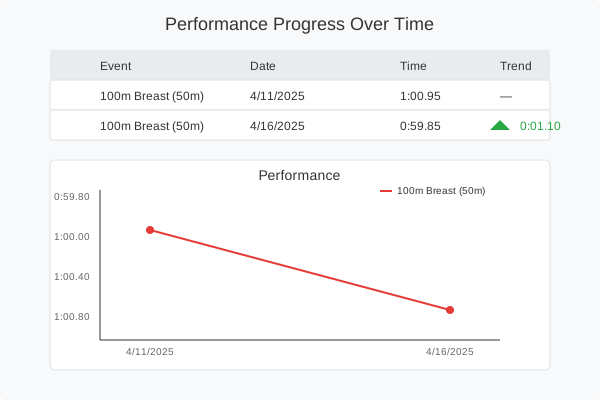
Performance Progress Analysis
Key features of the Progress tab:
- Filter Controls: Select specific stroke types and distances to focus your analysis
- Detailed Performance Table: Displays all recorded times with dates and improvement trends
- Visual Indicators: Green downward arrows show time improvements with the exact amount of improvement
- Performance Line Chart: Visualizes time progression with an intuitive display where lower points on the chart represent better (faster) times
To use the Progress tool:
- Navigate to a swimmer's profile and click the "Progress" tab
- Use the dropdown filters at the top to select:
- Stroke type (e.g., Freestyle, Backstroke, Breaststroke, Butterfly, or All)
- Distance (e.g., 50m, 100m, 200m, or All)
- Review the performance table showing:
- Event name
- Date of recording
- Achieved time
- Improvement trend (with green arrows for improvement)
- Analyze the performance line chart that visualizes progress over time, with better times appearing at the bottom of the chart
Statistics
The Statistics tool provides a data-driven overview of your swimmer's performance metrics, personal bests, and improvement patterns.
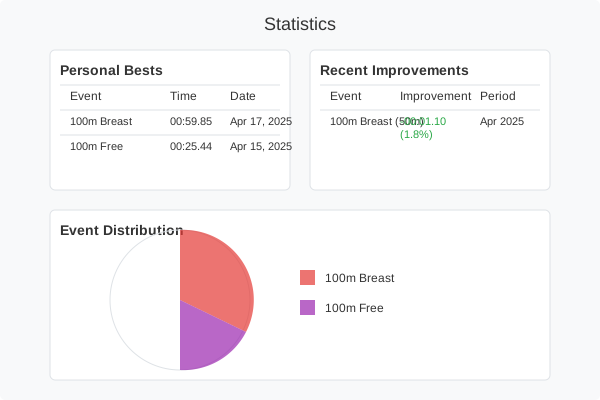
Performance Statistics Dashboard
The Statistics tab is divided into three main components:
1. Personal Bests
This section displays the swimmer's best times for each event:
- Event name (stroke and distance)
- Best recorded time
- Date when the best time was achieved
2. Recent Improvements
This section highlights performance gains made by the swimmer:
- Event name
- Time improvement (displayed in both absolute time and percentage)
- Time period over which the improvement occurred
3. Event Distribution
A pie chart visualization showing the breakdown of recorded times by event type:
- Color-coded segments representing different strokes and distances
- Percentage distribution of each event in the swimmer's record
- Legend identifying each event type
To access and use the Statistics:
- Navigate to a swimmer's profile
- Click the "Statistics" tab
- Review the automatically generated statistical analysis
What If?
This tool allows you to simulate scenarios and optimize race strategies.
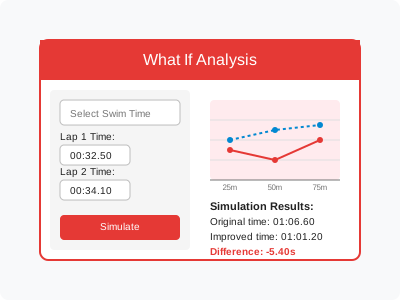
"What If" simulation interface
To use the tool:
- Access "Analysis Tools" > "What If?"
- Configure the parameters:
- Select the swimmer
- Choose the swimming style
- Select the distance
- Choose pool length
- View the summary with:
- Current best time
- Average speed
- Target time
- Desired improvement percentage
- Analyze:
- Historical performance graph
- Comparative table of lap times
- Current vs. ideal performance graphs
This tool allows you to answer the question "What would happen if the swimmer improved their time by a certain percentage?" and see how that time would be distributed across each lap.
Target Time
This tool allows you to establish training zones and objectives based on current performance.
To use the tool:
- Access "Analysis Tools" > "Target Time"
- Configure the parameters:
- Select the swimmer
- Choose the swimming style
- Select the distance
- Choose pool length
- The system will display:
- Training zones (Z1 to Z6)
- Intensity percentages
- Recommended times for each zone
- Pace per 100m for each zone
- Consult the "Times by Distance" table that shows recommended times for different distances in each training zone
This tool is especially useful for planning specific training sessions according to different intensities.
Stopwatch
The Stopwatch tool allows you to time multiple swimmers simultaneously during training or competition.
The latest version includes a card-based layout that lets you monitor up to 4 swimmers side by side on tablets or computers, making it easier to track multiple athletes at once.
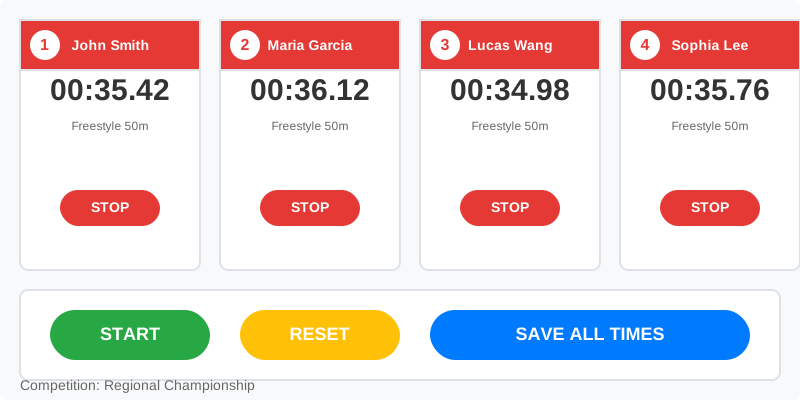
New Stopwatch Card Layout with Individual Timing Controls
Key Features:
- Card-based design with uniform layout
- Select multiple swimmers to time simultaneously
- Individual stop buttons for each swimmer
- Record competition name instead of number of laps
- Consistent styling with clearly visible swimmer numbers and names
- Focus on essential timing data for better readability
To use the Stopwatch:
- Access the "Stopwatch" option from the main menu
- In the setup phase:
- Select the swimmers you want to time
- Enter the competition name
- Choose swimming style
- Specify distance and pool length
- Click "Start Timing"
- During timing:
- Press the main "Start" button to begin timing all swimmers
- Use "Record Lap" button to record splits for individual swimmers
- Use individual "Stop" buttons to stop timing specific swimmers
- When all swimmers have finished, use "Save All Times" to record the data
Training Planning
SWIM ANALYSIS includes a powerful planning system to structure the training season.
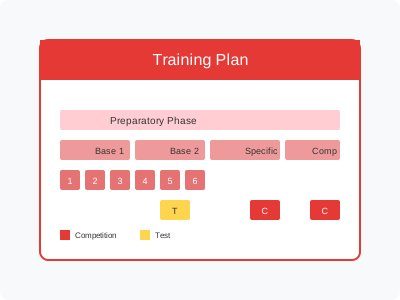
Training Planning View
Create Training Plan
- Access "Planning" > "Create New Plan"
- Define the basic information:
- Plan name
- Start and end dates
- Description
- Configure macrocycles and mesocycles using the enhanced date selectors
- Add competitions and tests to the plan
- Define the weekly volumes
- Save the plan
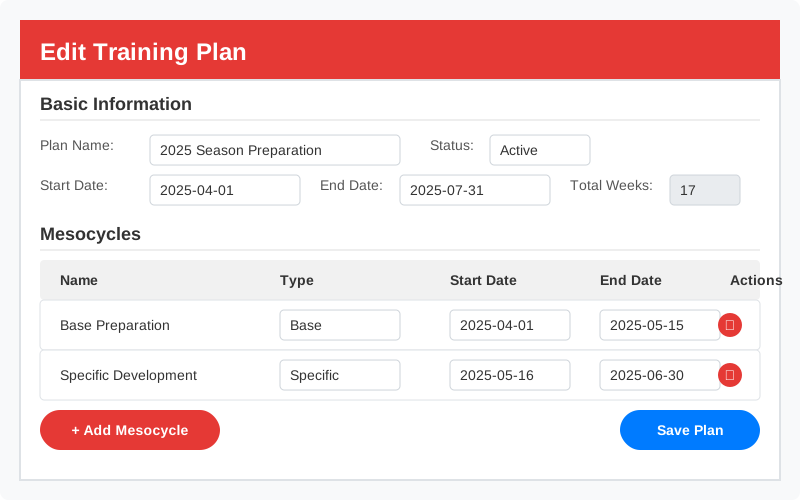
Enhanced Training Plan Editor with Mesocycle Management
The new plan editor provides several improvements:
- Direct editing of macrocycles and mesocycles with calendar-based date selectors
- Calendar selectors allow selecting dates beyond the current plan's end date, with automatic plan duration adjustment
- Simplified free-text entry for macrocycle and mesocycle types instead of limited dropdown options
- Add, edit, and remove competitions and tests inline
- Intuitive interface for defining training blocks and competitive events
- Automatic week number calculations for better organization
Working with Macrocycles, Mesocycles, Competitions and Tests
The planning system has been enhanced to provide a more flexible and intuitive experience when creating and managing training cycles and events:
Macrocycles
- Each macrocycle represents a major training phase
- Simply enter a descriptive name in the "Type" field - you can now use any text instead of selecting from a predefined list
- Set start and end dates using the calendar selectors
- The system automatically calculates and displays the week numbers for reference
Mesocycles
- Mesocycles are sub-phases within macrocycles
- Like with macrocycles, you can now enter any descriptive text for the mesocycle type
- The date selectors help you choose appropriate training periods
- Week numbers are calculated automatically based on the plan's start date
Competitions
- Add competitions to mark important events in your training plan
- Each competition includes name, type, and date fields
- The system shows the corresponding week number below the date field for easy reference
- You can add multiple competitions and remove them as needed
Tests
- Tests allow you to schedule performance evaluations
- Include a descriptive name, date, and optional description
- Like competitions, tests display their corresponding week number for better planning
- Tests can be added and removed dynamically while creating your plan
Calendar View
The enhanced calendar view allows you to visualize the entire training plan with improved navigation:
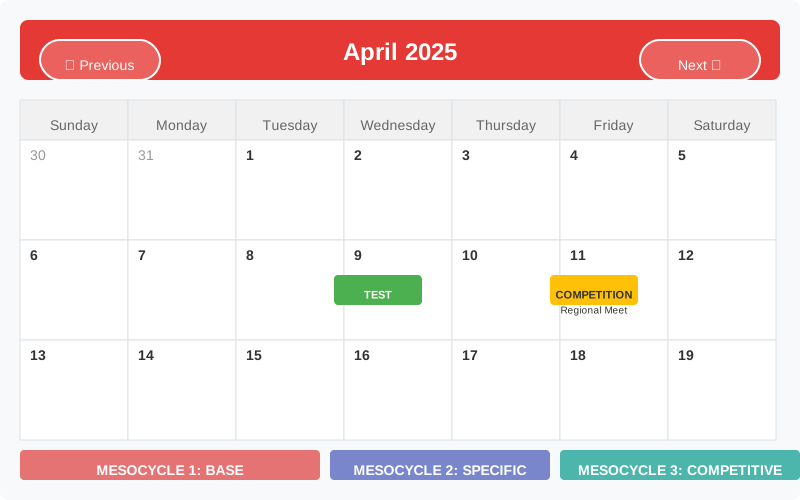
Enhanced Calendar View with Month Navigation
Key features of the calendar view:
- Responsive monthly calendar with intuitive navigation controls
- Clear visualization of competitions and tests with color-coded indicators
- Enhanced month navigation with "Previous" and "Next" buttons for easy browsing
- Color-coded mesocycles displayed at the bottom for reference
The calendar view makes it easy to identify key events and training phases at a glance, helping coaches and athletes maintain a clear overview of the training cycle.
PDF Export
The PDF export feature allows you to generate comprehensive documents for your training plans:
- Navigate to the plan view
- Click on the "Export to PDF" button
- The system will generate a complete PDF document
The exported PDF includes:
- Complete plan information with dates and description
- Mesocycle breakdown with types and durations
- Competition and test schedule
- Weekly volume progression
- Clear messages when sections are empty
SwimClub PRO
Comprehensive Management Platform for Swimming Clubs
Introduction
SwimClub PRO is a comprehensive management platform designed specifically for swimming clubs, accessible at /team-pro. It allows coaches and administrators to centrally manage all aspects of their club: from swimmer registration to training planning, attendance tracking and individual performance monitoring.
Who Is It For
| Role | Access | Main Functions |
|---|---|---|
| Administrator | Club email + password | Create club, manage groups, register swimmers, create trainings, full dashboard |
| Head Coach | Same as administrator | All system functions |
| Assistant Coach | Personal email + password | Create trainings, record sessions, manage assigned groups |
Key Features
- Club management: Multi-club platform supporting multiple organizations, each with their own groups, swimmers and trainings
- AI-powered training creation: AI assistant that interprets natural language text (Spanish and English) and generates structured training plans automatically
- Attendance tracking: Session recording with three states (Present, Late, Absent) and automatic volume calculation per swimmer
- Individual profiles: Each swimmer has a profile with photo, personal data, emergency contact, session history and performance statistics
- PDF export: Trainings can be exported as professional PDF documents for printing or sharing
- Dashboard reports: Comprehensive monthly reports with volume analytics, attendance rates, team overviews and individual progress
Getting Started
Creating a New Club
Club registration is completed in two steps:
Step 1: Club Information
On the home screen, click "Create Club". You will need to provide:
| Field | Required | Description |
|---|---|---|
| Club Name | Yes | Official name of your swimming club |
| Manager Name | Yes | Person responsible for the club |
| Manager Phone | Yes | Manager contact number |
| Head Coach Name | Yes | Main coach (can be the same as manager) |
| Head Coach Phone | Yes | Coach contact number |
| Yes | Used for login | |
| Password | Yes | Minimum 4 characters |
| Pool Type | Yes | 25 meters or 50 meters |
| Website | No | Club website URL |
Optionally, add Assistant Coaches with their name, email, phone and password. Each assistant can log in independently.
Step 2: Create Training Groups
| Field | Description |
|---|---|
| Group Name | E.g.: Competitive, Youth, Masters |
| Color | Select from 10 colors to identify the group |
| Description | Brief group description |
| Coach in Charge | Select Head Coach or any registered assistant |
| Training Days | Multi-select: click on training days (Mon-Sun) |
| Start / End Time | Training schedule |
Login and Roles
SwimClub PRO supports three user roles with different access levels:
Administrator / Head Coach
- Full access to all teams, swimmers, and data
- Create club, manage groups, register swimmers, create trainings
- Full dashboard with club-wide statistics
- Generate PDF reports
Assistant Coach
- Personal email + password login
- Create trainings and record sessions for assigned groups only
- View swimmers and profiles in their groups
To log in:
- Navigate to
/team-pro - Enter your email and password
- Click "Log In"
Swimmer Management
From the "Swimmers" section, click "+ New Swimmer" to register a new athlete.
Personal Data
| Field | Detail |
|---|---|
| Full Name | First and last name |
| Date of Birth | Age is calculated automatically |
| Group | Select from previously created groups |
Emergency Contact
| Field | Detail |
|---|---|
| Guardian Name | Responsible person for the minor |
| Guardian email | |
| Phone | Contact number |
| Address | Home address |
| Blood Type | A+, A-, B+, B-, AB+, AB-, O+, O- |
| Allergic | Checkbox with detail field if active |
Filtering and Editing
Use filter chips at the top to filter by group. Each swimmer card has edit and delete icons in the upper right corner. Click the card to access the full profile.
Training Creation
Trainings are organized into Work Blocks. Each block groups related exercises for a logical and compact structure.
Block Editor
Available Block Types
| English | Spanish | Typical Use |
|---|---|---|
| Warm-up | Calentamiento | Easy-pace initial exercises |
| Kick | Pateo | Leg work with/without fins |
| Drill | Tecnica | Technique correction |
| Pull | Pull | Arm work with paddles |
| Main Set | Serie Principal | Central, most demanding block |
| Speed | Velocidad | Sprints and max speed |
| Endurance | Resistencia | Long endurance series |
| Cool Down | Vuelta a la Calma | Recovery |
| Other | Otro | Any other work |
Exercise Fields
| Field | Range | Example |
|---|---|---|
| Rounds | 1-10 | 2 (block repeats twice) |
| Series | 1-50 | 4 reps per round |
| Reps | 1-20 | Usually 1 |
| Distance | 25m+ | 100 meters |
| Style | 5 options | Freestyle, Backstroke, Breaststroke, Butterfly, Medley |
| Zone | 6 options | EN1, EN2, EN3, SP1, SP2, SP3 |
| Accessories | Multi-select | Snorkel, Paddles, Fins, Other |
| Target Time | m:ss | 1:30 |
| Comments | Free text | Keep steady pace |
Automatic Calculations
- Volume per exercise = Rounds x Series x Reps x Distance
- Total volume = Sum of all exercise volumes across all blocks
- Estimated time = Sum of (Rounds x Series x Reps x Target time) per exercise
Distribution Charts
Two horizontal stacked bar charts update in real time: Zone Distribution and Style Distribution, showing percentage breakdowns with color-coded segments.
AI Assistant
SwimClub PRO integrates an AI assistant (Claude by Anthropic) that interprets training descriptions in natural language and converts them into structured work blocks.
How to Use It
- Open the New Training form
- In the blue "AI Assistant" box, type the training in plain text
- Click "Interpret with AI"
- The AI analyzes your text and generates work blocks automatically
- Review generated tasks — click any exercise to edit
- Save the training when satisfied
Example Inputs
Technical (English)
4x100 free EN2 1:30 with paddles, 2r 4x50 fly EN3 0:50 with fins, 6x25 sprint free SP3
Natural Language (English)
Warm-up 400 IM easy, then 8x50 freestyle hard at 45 seconds with paddles, finish with 200 easy
Technical (Spanish)
4x100 libre EN2 1:30 con paletas, 2r 4x50 mariposa EN3 0:50 con aletas, 6x25 sprint libre SP3
Recognized Abbreviations
| Abbreviation | Meaning | Lang |
|---|---|---|
| free, fr | Freestyle | EN |
| back, bk | Backstroke | EN |
| breast | Breaststroke | EN |
| fly, bu | Butterfly | EN |
| IM, medley | Medley | EN/ES |
| cr, crol | Libre (Freestyle) | ES |
| esp | Espalda (Backstroke) | ES |
| pe, braza | Pecho (Breaststroke) | ES |
| mari, mp | Mariposa (Butterfly) | ES |
| easy / suave | Zone EN1 | EN/ES |
| moderate / moderado | Zone EN2 | EN/ES |
| hard, threshold / fuerte | Zone EN3 | EN/ES |
| sprint, max | Zone SP3 | EN/ES |
| paddles / paletas | Paddles | EN/ES |
| fins / aletas | Fins | EN/ES |
| 4x100 | 4 series of 100m | Universal |
| 2r 4x100 | 2 rounds of 4x100m | Universal |
PDF Export
Each training card has a document icon and an "Export PDF" button.
PDF Content
The exported PDF includes:
- Header with training name and club info
- Summary cards (volume, estimated time, number of tasks)
- Zone and style distribution charts
- Complete task table with all exercise details
- Footer with club name and date
How to Save
- Click the export button on the training card
- A new tab opens with the formatted document
- Click "Save as PDF" or use Ctrl+P and select "Save as PDF"
Training Sessions
The Sessions section allows coaches to record daily training attendance and automatically calculate volume for each swimmer.
Recording a Session
- Select the Group training today
- Select the Training to perform
- Mark attendance for each swimmer
- Click "Record Session"
Attendance States
| Status | Assigned Volume | Color |
|---|---|---|
| Present ✓ | 100% of training volume | Green |
| Late ■ | 50% of training volume | Yellow |
| Absent ✗ | 0 meters | Red |
All swimmers default to "Present". Date and time are recorded automatically.
Session History
All registered sessions appear in a chronological list showing:
- Session date and time
- Group name with color badge
- Training plan used
- Attendance summary (Present / Late / Absent counts)
- Total volume for the session
Click any session to expand its details and see individual swimmer attendance and volume.
Swimmer Profile
Click any swimmer card to access their full profile.
Profile Content
- Photo: Click the avatar to upload a profile picture (saved as base64)
- Personal info: Name, group, age, date of birth, registration date, blood type, allergies
- Emergency contact: Guardian name, phone, email, address
Statistics Cards
| Statistic | Description |
|---|---|
| Total Volume | All meters across all sessions (km) |
| Monthly Volume | Meters in current month |
| Attended | Sessions with 'Present' status |
| Late | Sessions with 'Late' status |
| Absent | Sessions with 'Absent' status |
Session History: Complete table sorted by date showing training name, status and volume.
Dashboard
The Dashboard is the first screen after login, showing a general overview of your club.
- Key stats: Swimmers, Groups, Trainings, Sessions this month
- Monthly overview: Total volume (km) and attendance count
- Groups grid: All groups with color, coach, swimmer count and schedule
- Recent sessions: Last 5 sessions with attendance badges
Reports
SwimClub PRO includes a powerful report generation tool accessible from the Dashboard. The "Download Report" button generates a comprehensive PDF.
Report Contents
1. Monthly Summary
- Total training volume (in km)
- Overall attendance rate percentage
- Number of sessions held
- Total active swimmers and training plans
- Top Volume Rankings — The 5 swimmers with the highest training volume this month
- Low Attendance Alerts — Swimmers with the lowest attendance rates (for those with 3+ sessions)
2. Team Overview
- Number of swimmers and sessions per team
- Monthly volume (km)
- Present, Late, and Absent counts
- Visual attendance rate bar with color coding
3. Individual Swimmer Progress
- All swimmers ranked by monthly volume
- Name, age, team, total and monthly volume
- Attendance rate with visual progress bar
4. Session Log (Last 20)
- Date, time, team, training plan
- Attendance breakdown (Present, Late, Absent)
- Total volume per session
How to Generate
- Navigate to the Dashboard
- Click "Download Report"
- A new window opens with the formatted report
- Click "Save as PDF" or use Ctrl+P to save/print
Password Recovery
If you forget your password, follow these steps:
- On the login screen, click "Forgot your password?"
- Enter your account email
- The system displays your account info: name, email, club, role
- Enter a new password twice with real-time validation
- Click "Update Password" and log in with your new credentials
Training Zones Glossary
| Zone | Name | Description | Approx. HR% |
|---|---|---|---|
| EN1 | Low Aerobic | Easy pace, warm-up/cool down. Long duration, low intensity. | 60-70% |
| EN2 | Medium Aerobic | Moderate sustained pace. Endurance foundation. | 70-80% |
| EN3 | Threshold | Hard pace at anaerobic threshold. Demanding sets. | 80-90% |
| SP1 | Lactate Tolerance | High intensity, lactate tolerance. Short sets with rest. | 85-95% |
| SP2 | VO2 Max | Very high intensity. Maximum aerobic power. | 90-100% |
| SP3 | Speed | Maximum sprint. Explosive, very short duration. | 95-100% |
Bilingual Support
The AI Assistant supports both English and Spanish, auto-detecting the input language.
Terminology
| English | Spanish |
|---|---|
| Freestyle | Libre |
| Backstroke | Espalda |
| Breaststroke | Pecho |
| Butterfly | Mariposa |
| Medley | Combinado |
| Paddles | Paletas |
| Fins | Aletas |
| Warm-up | Calentamiento |
| Kick | Pateo |
| Drill | Tecnica |
| Main Set | Serie Principal |
| Cool Down | Vuelta a la Calma |
Universal Values
Training zones (EN1-SP3), series notation (4x100, 2r 4x50) and time format (m:ss) are identical in both languages.
General Information
Technical requirements, data formats, and support
Technical Aspects
System Requirements
SWIM ANALYSIS is a web application that works in any modern browser. For the best experience, we recommend:
- Google Chrome, Mozilla Firefox, Microsoft Edge, or Safari (updated versions)
- Stable internet connection
- Minimum screen resolution of 1280x720 (though it is responsive for mobile devices)
Data Types
- Swimming styles: Freestyle, Backstroke, Breaststroke, Butterfly, Medley
- Distances: 50m, 100m, 200m, 400m, 800m, 1500m
- Pool lengths: 25m, 50m, 25y
- Time format: mm:ss.cc (minutes:seconds.hundredths)
Security
- The platform uses encrypted connections (HTTPS) to protect your data
- Passwords are securely stored using hashing techniques
- Sessions with limited duration to protect your account
- Protection against common attacks such as XSS and CSRF
Data Backup
We recommend periodically exporting important data to have an additional backup. The platform performs automatic backups, but it's a good practice to maintain your own backups.
Contact and Support
If you need help or have any questions about SWIM ANALYSIS, you can contact us through:
- Email: info@grupoatlas.cl
- Contact form: Accessible from the "Contact" section of the website
- Service hours: Monday to Friday from 9:00 to 18:00 hours
Frequently Asked Questions
Yes, the platform is optimized to work on mobile devices and tablets, although some advanced analysis tools may be more comfortable to use on larger screens.
There is no limit to the number of swimmers you can register in your account.
Yes! SwimAnalytics Pro lets you export session data to Excel (.xlsx with summary + per-session sheets with DPS) and generate 2-page PDF reports with 9 charts and lap tables. SwimClub PRO exports individual training plans to PDF and offers monthly dashboard reports with volume analytics and attendance data.
The Dashboard displays 9 interactive charts: Lap Time, SR vs Velocity (dual-axis), SR per Lap, Strokes per Lap (SC), Velocity per Section, Swim Time per Lap, DPS, Breakdown: Underwater + Swim (stacked bars), and Lap with Sections (stacked bars with line overlay). Each chart has a "Download PNG" button for exporting individual charts as images.
In a 25m pool, each lap is split into a 15m section and a 10m section, with one SR value per lap. In a 50m pool, each lap has a single 25m section with two SR values (SR1 for 0-25m, SR2 for 25-50m) and the system calculates the SR Average automatically. The number of laps is Distance / Pool Length.
Yes! The Compare section lets you analyze two sessions side by side with 6 comparative charts. You can compare the same swimmer across different competitions (to track progress) or two different swimmers (for team analysis). Session A appears in red, Session B in blue dashed lines.
You can send your suggestions through the contact form or directly to our email.
SWIM ANALYSIS (with SwimAnalytics Pro) focuses on individual swimmer performance — recording per-lap competition data with 9 analysis charts, exporting to Excel/PDF, and comparing sessions side by side. SwimClub PRO focuses on club-level operations — managing teams and groups, creating daily training plans with AI assistance, tracking attendance with automatic volume calculation, and generating comprehensive reports. Both modules complement each other for a complete swimming management solution.
Yes, assistant coaches receive their own login credentials during club setup. They can independently create training plans, register attendance, and view swimmers — but only for the groups they are assigned to. The club administrator has full access to everything.
The AI assistant (powered by Claude) interprets natural language workout descriptions in both English and Spanish and converts them into structured work blocks. Simply type a workout like "4x100 free EN2 1:30 with paddles" and the AI will create the proper exercise entry with sets, distance, style, zone, and accessories. It supports common swimming abbreviations and series notation (e.g., 2r 4x100). There is a limit of 10 requests per minute.
Yes! SwimClub PRO offers two types of PDFs: (1) Training Plan PDFs — professional printouts of individual workouts with exercise tables, zone/style distribution charts, and summary cards, and (2) Dashboard Reports — comprehensive monthly club reports with volume analytics, attendance rates, team overviews, individual swimmer progress, and session logs. Both open in a new window where you can print or save as PDF.
SwimClub PRO supports 6 training zones: EN1 (Low Aerobic, 60-70% HR), EN2 (Medium Aerobic, 70-80%), EN3 (Threshold, 80-90%), SP1 (Lactate Tolerance, 85-95%), SP2 (VO2 Max, 90-100%), and SP3 (Speed, 95-100%). Zone codes are identical in English and Spanish.
Yes! The AI auto-detects the input language and responds accordingly. It supports common abbreviations in both languages (e.g., "free"/"crol" for Freestyle, "fly"/"mari" for Butterfly). You can even mix languages — "4x100 free EN2 con paletas" works perfectly.